
一. GUI 编程(图形界面编程)
思考:
- GUI 编程 是什么?
- GUI 编程 怎么玩?
- GUI 编程 该如何去在平时运用?
- class 反编译为 java 文件
组件:
- 窗口
- 弹窗
- 面板
- 文本框
- 列表框
- 按钮
- 图片
- 监听事件(交互)
- 鼠标事件
- 键盘事件
- 外挂:Java (在Java虚拟机上跑,检测不到)
- 破解工具(软件破解用Java写的)
C/S:客户端/服务器
B/S:浏览器/服务器 HTML(页面绘制) + Servlet(监听器) MVC架构
1. 简介
GUI的核心编程技术:Swing 、AWT 。
- 不流行的原因:
- 界面不美观
- 需要 JRE 环境!
- 为什么我们要学习?
- 了解 MVC 架构思想!
- 了解监听思想!
- 可以写出自己心中想要的一些小工具!
- 工作中,也可能需要维护到 Swing 界面,概率极小!
2. AWT (底层的实现)
2.1 AWT 介绍 -- 抽象的窗口工具
- 包含了很多类和接口! GUI(图像用户窗口编程)
- 元素:窗口、按钮、文本框
- java.awt 包
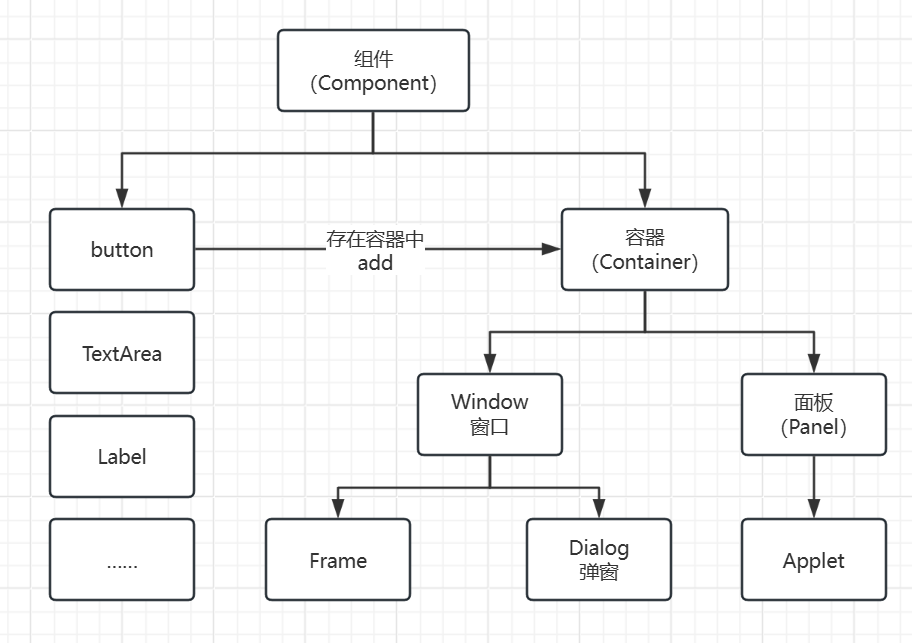
2.2 组件和容器
2.2.1 Frame
GUI 的第一个界面
 //GUI 的第一个界面
 public class _01_Frame {
     public static void main(String[] args) {
         // 万物皆对象
         // Frame 也是一个对象     JDK 看源码
         Frame frame = new Frame("我的第一个 Java 图形界面窗口");

         //需要设置可见性
         frame.setVisible(true);

         //设置窗口大小
         frame.setSize(500, 500);

         //设置窗口颜色
         frame.setBackground(new Color(234, 101, 13));

         //弹出的初始位置
         frame.setLocation(200,200);

         //设置窗口大小固定
         frame.setResizable(false);
     }
 }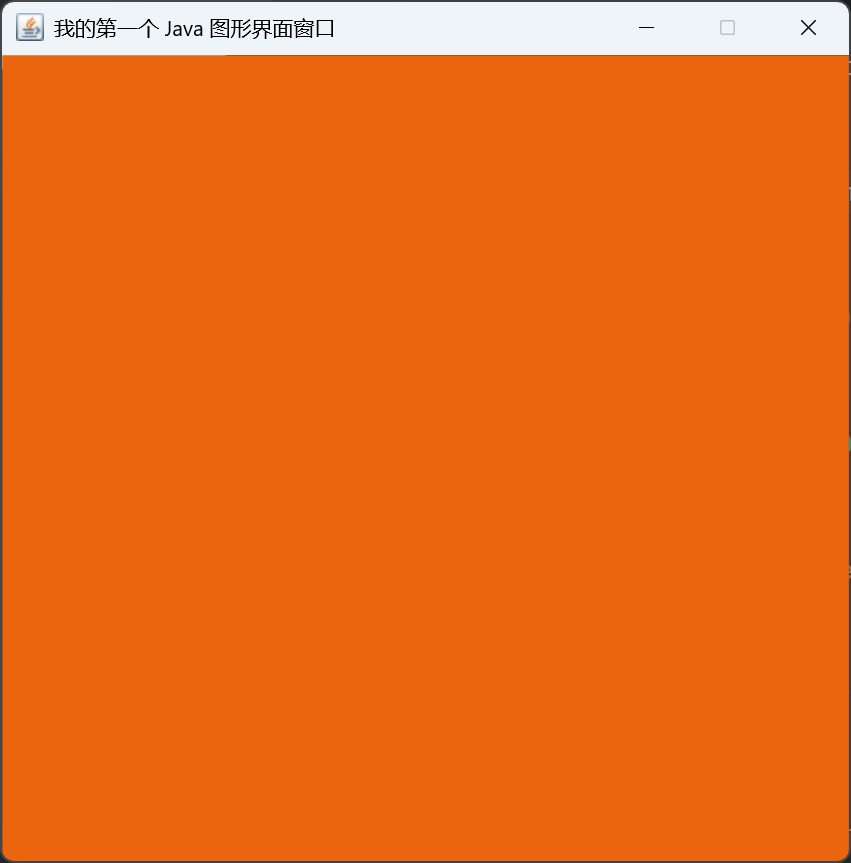
问题:发现窗口无法关闭;
解决:停止Java程序运行。
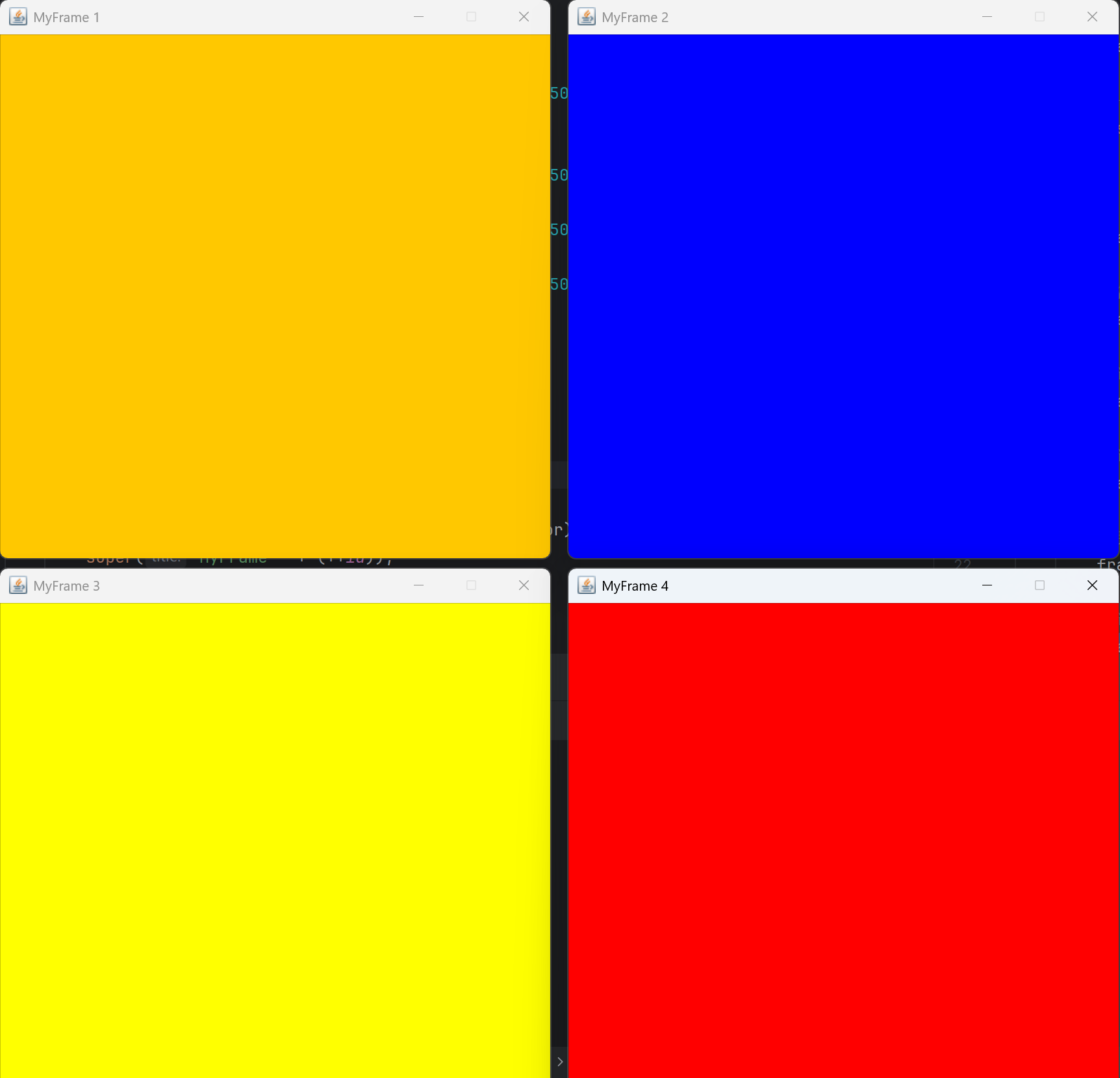
尝试回顾封装:
 package com.xin.base;

 import java.awt.*;

 /**
  * 展示多个窗口
  */
 public class _02_Frame {

     public static void main(String[] args) {
         MyFrame myFrame1 = new MyFrame(100,100,500,500,Color.orange);
         myFrame1.setResizable(false);//窗口大小固定

         MyFrame myFrame2 = new MyFrame(600,100,500,500,Color.blue);
         myFrame2.setResizable(false);
         MyFrame myFrame3 = new MyFrame(100,600,500,500,Color.yellow);
         myFrame3.setResizable(false);
         MyFrame myFrame4 = new MyFrame(600,600,500,500,Color.red);
         myFrame4.setResizable(false);
     }
 }

 class MyFrame extends Frame {
     //计数
     private static int id = 0;

     public MyFrame(int x, int y, int w, int h,Color color) {
         super("MyFrame " + (++id));
         setBackground(color);
         setVisible(true);//窗口可见
 //        setSize(w, h);//窗口大小
 //        setLocation(x,y);//窗口初始位置
         setBounds(x,y,w,h);
     }
 }
2.2.2 面板 Panel
解决了关闭事件!
 /**
  * 面板 Panel
  * 可以看成是一个空间,但是不能单独存在
  */
 public class _03_Panel {
     public static void main(String[] args) {
         Frame frame = new Frame();
         //布局的概念  FlowLayout
         Panel panel1 = new Panel();
         Panel panel2 = new Panel();

         //设置布局
         frame.setLayout(null);
         //坐标
         frame.setBounds(300,300,500,500);
         frame.setVisible(true);
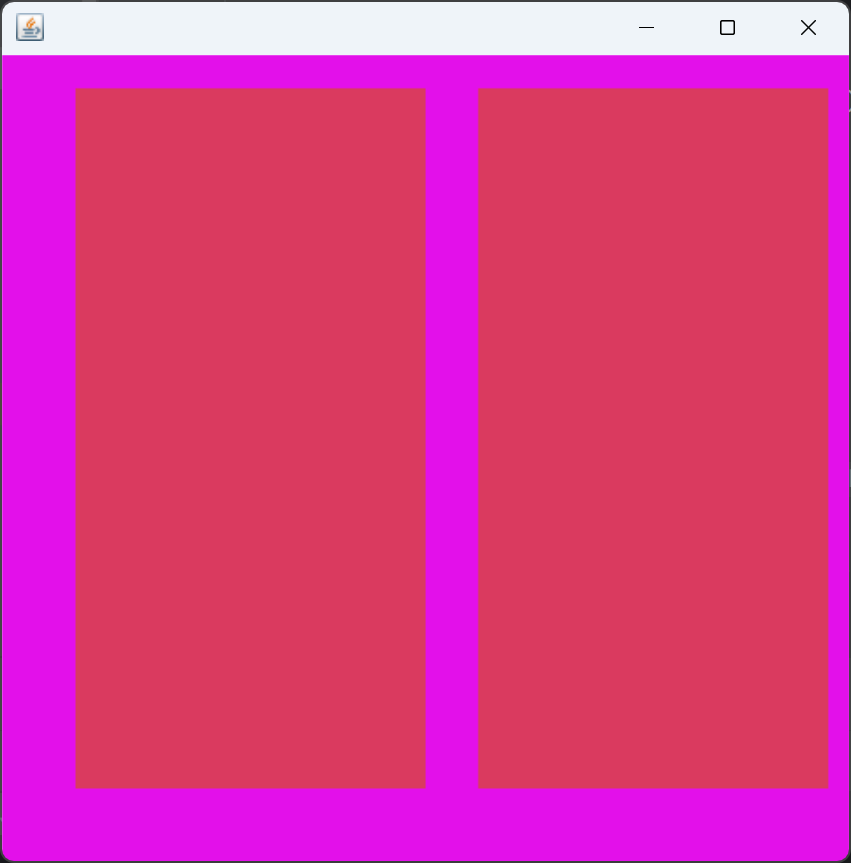
         frame.setBackground(new Color(227, 16, 234));

         //panel 设置坐标,相对于 Frame
         panel1.setBounds(50,50,200,400);
         panel1.setBackground(new Color(218, 58, 95));

         panel2.setBounds(280,50,200,400);
         panel2.setBackground(new Color(218, 58, 95));

         //将面板添加到 Frame
         frame.add(panel1);
         frame.add(panel2);

         //监听事件:监听窗口关闭事件 System.exit(0);
         //适配器模式
         frame.addWindowListener(new WindowAdapter() {
             //窗口点击关闭的时候
             public void windowClosing(WindowEvent e) {
                 //结束程序
                 System.exit(0);
             }
         });
     }
 }
2.3 3种布局管理器
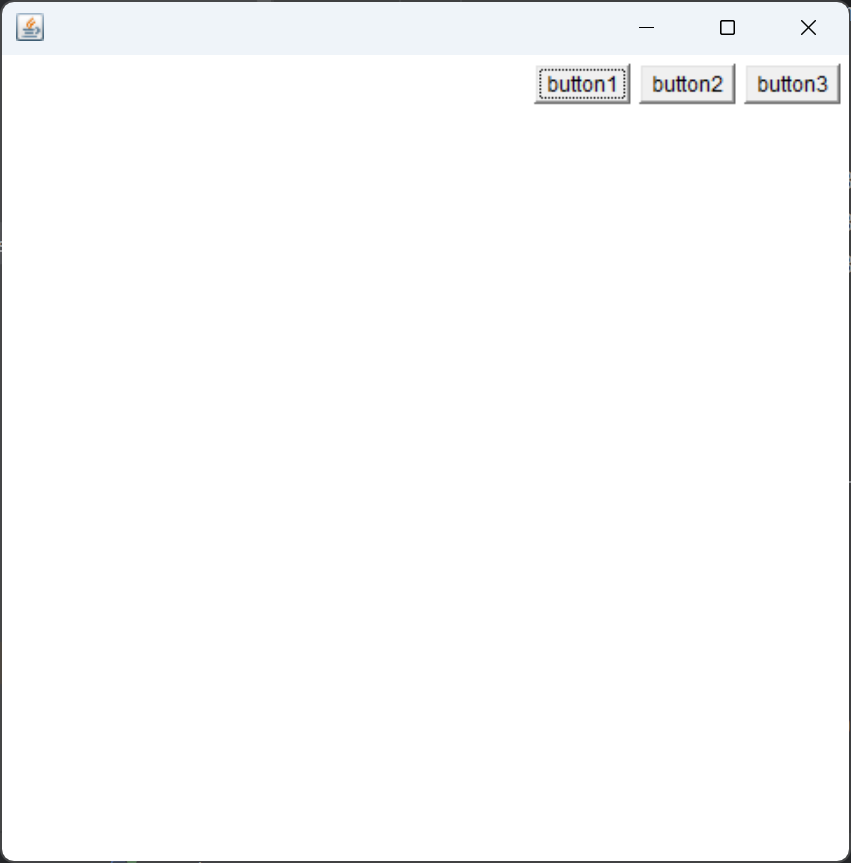
2.3.1 流式 布局
 /**
  * 流式布局
  */
 public class _04_FlowLayout {

     public static void main(String[] args) {
         Frame frame = new Frame();
         frame.setBounds(200,200,500,500);

         //组件 - 按钮
         Button button1 = new Button("button1");
         Button button2 = new Button("button2");
         Button button3 = new Button("button3");

         //设置为流布局
 //        frame.setLayout(new FlowLayout());//默认居中    FlowLayout.CENTER
 //        frame.setLayout(new FlowLayout(FlowLayout.LEFT));
         frame.setLayout(new FlowLayout(FlowLayout.RIGHT));

         //把按钮添加上去
         frame.add(button1);
         frame.add(button2);
         frame.add(button3);
         frame.setVisible(true);

         //监听关闭按钮
         frame.addWindowListener(new WindowAdapter() {
             public void windowClosing(WindowEvent e) {
                 System.exit(0);
             }
         });
     }
 }
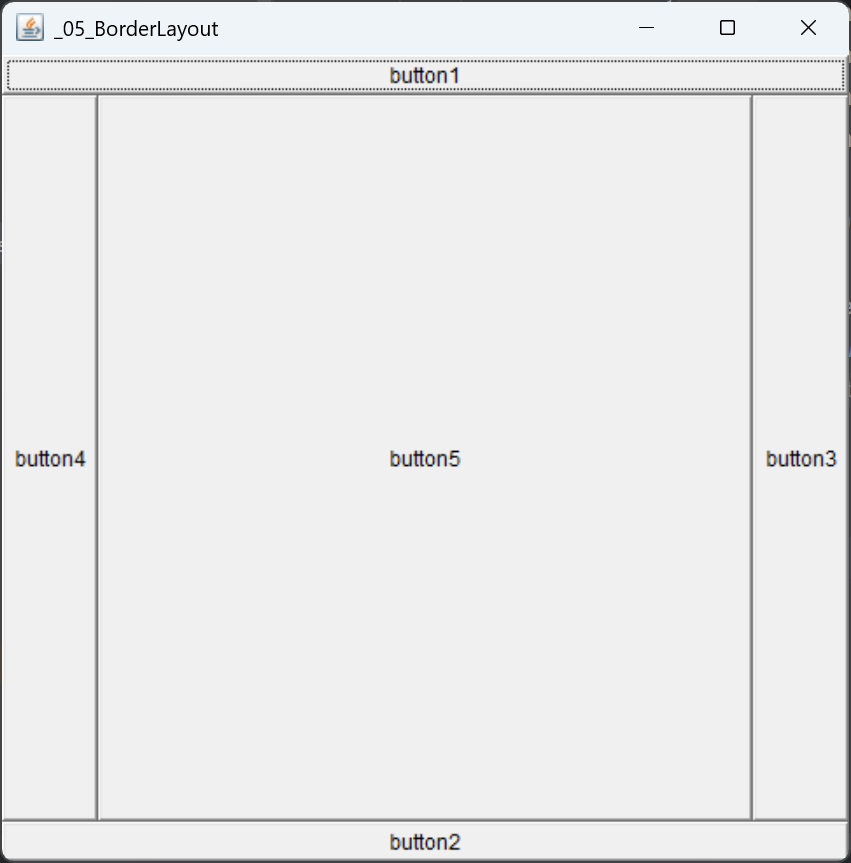
2.3.2 东西南北中 布局
 /**
  * 东西南北中布局
  */
 public class _05_BorderLayout {
     public static void main(String[] args) {
         Frame frame = new Frame("_05_BorderLayout");
         frame.setBounds(200,200,500,500);

         Button button1 = new Button("button1");
         Button button2 = new Button("button2");
         Button button3 = new Button("button3");
         Button button4 = new Button("button4");
         Button button5 = new Button("button5");

         //布局
         frame.add(button1,BorderLayout.NORTH);
         frame.add(button2,BorderLayout.SOUTH);
         frame.add(button3,BorderLayout.EAST);
         frame.add(button4,BorderLayout.WEST);
         frame.add(button5,BorderLayout.CENTER);

         frame.setVisible(true);

         frame.addWindowListener(new WindowAdapter() {
             public void windowClosing(WindowEvent e) {
                 System.exit(0);
             }
         });
     }
 }
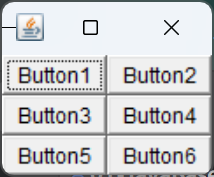
2.3.3 表格 布局
 /**
  * 表格布局
  */
 public class _06_GridLayout {
     public static void main(String[] args) {
         Frame frame = new Frame("_06_GridLayout");
 //        frame.setBounds(100, 100, 450, 300);

         Button button1 = new Button("Button1");
         Button button2 = new Button("Button2");
         Button button3 = new Button("Button3");
         Button button4 = new Button("Button4");
         Button button5 = new Button("Button5");
         Button button6 = new Button("Button6");

         frame.setLayout(new GridLayout(3, 2));
         frame.add(button1);
         frame.add(button2);
         frame.add(button3);
         frame.add(button4);
         frame.add(button5);
         frame.add(button6);

         frame.pack();//Java 函数  自动填充,不需要 frame.setBounds
         frame.setVisible(true);

         frame.addWindowListener(new WindowAdapter() {
             public void windowClosing(WindowEvent e) {
                 System.exit(0);
             }
         });
     }
 }
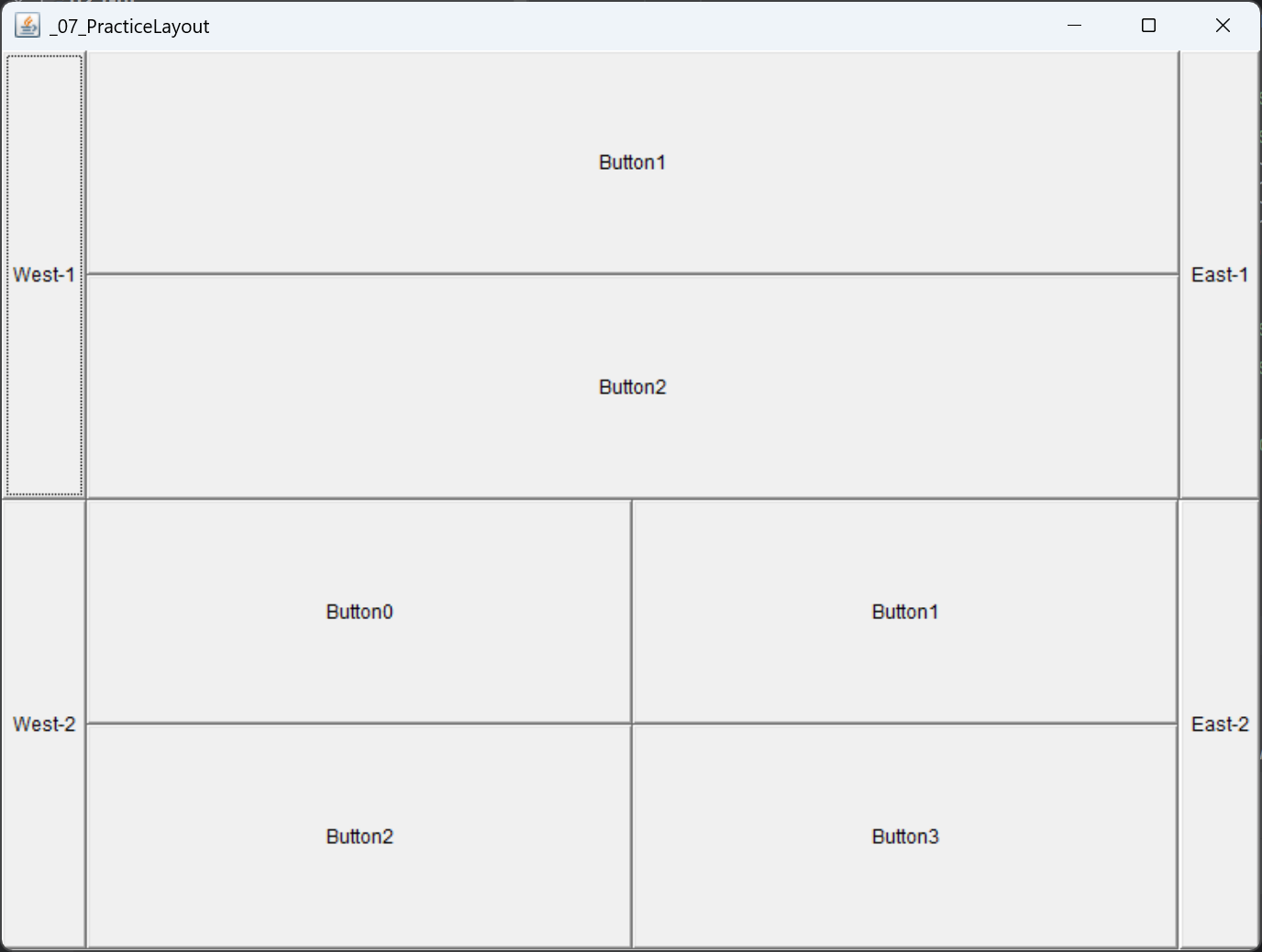
2.3.4 布局练习
 /**
  * 布局练习
  */
 public class _07_PracticeLayout {
     public static void main(String[] args) {
         //frame窗
         Frame frame = new Frame("_07_PracticeLayout");
         frame.setBounds(200,200,800,600);
         frame.setVisible(true);
         frame.setLayout(new GridLayout(2,1));

         Panel panel1 = new Panel(new BorderLayout());
         Panel panel2 = new Panel(new GridLayout(2,1));
         Panel panel3 = new Panel(new BorderLayout());
         Panel panel4 = new Panel(new GridLayout(2,2));

         panel1.add(new Button("West-1"), BorderLayout.WEST);
         panel1.add(new Button("East-1"), BorderLayout.EAST);
         panel2.add(new Button("Button1"));
         panel2.add(new Button("Button2"));
         panel1.add(panel2, BorderLayout.CENTER);

         panel3.add(new Button("West-2"), BorderLayout.WEST);
         panel3.add(new Button("East-2"), BorderLayout.EAST);
         for (int i = 0; i < 4; i++) {
             panel4.add(new Button("Button"+i));
         }
         panel3.add(panel4, BorderLayout.CENTER);

         frame.add(panel1);
         frame.add(panel3);

         frame.addWindowListener(new WindowAdapter() {
             public void windowClosing(WindowEvent e) {
                 System.exit(0);
             }
         });
     }
 }
2.3.5 绝对 布局
java
frame.setLayout(null);2.3.6 总结
- Frame 是一个顶级窗口
- Panel 无法单独显示,必须添加到某个容器中
- 布局管理器(流式、东西南北中、表格)
- 大小、定位、颜色背景、可见性、监听
2.4 监听事件
监听事件:当某个事情发生的时候,干什么?【鼠标监听,键盘监听,……】
java
/**
 * 事件监听
 */
public class _08_ActionEvent {
    public static void main(String[] args) {
        //按下按钮,触发一些事件
        Frame frame = new Frame("_08_ActionEvent");
        Button button = new Button("Button");

        //因为 addActionListener 需要一个 ActionListener,所以我们构造了一个MyActionEventListener
        button.addActionListener(new MyActionEventListener());
        frame.add(button,BorderLayout.CENTER);
        //关闭窗口事件(提出到工具类)
        ToolUtil.closeFrame(frame);

        frame.pack();
        frame.setVisible(true);
    }
}

class MyActionEventListener implements ActionListener {
    public void actionPerformed(ActionEvent e) {
        System.out.println("aaa");
    }
}
多个按钮,共享一个监听:
java
/**
 * 两个按钮共用一个事件
 */
public class _08_ActionEvent2 {
    public static void main(String[] args) {
        // 两个按钮,实现同一个监听
        // 开始    停止
        Frame frame = new Frame("开始-停止");

        Button button1 = new Button("button-start");
        Button button2 = new Button("button-stop");

        //可以显示的定义触发会返回的命令(不设置返回默认值)
        //可以多个按钮只写一个监听类
        button2.setActionCommand("button-stop-Command");
        button1.addActionListener(new MyActionEvent2());
        button2.addActionListener(new MyActionEvent2());

        frame.add(button1,BorderLayout.NORTH);
        frame.add(button2,BorderLayout.SOUTH);
        frame.pack();
        frame.setVisible(true);

        //窗口
        ToolUtil.closeFrame(frame);
    }
}

class MyActionEvent2 implements ActionListener {
    public void actionPerformed(ActionEvent e) {
        //获得按钮的信息
        String actionCommand = e.getActionCommand();

        System.out.println("按钮被点击了:msg => " + actionCommand);
//        if(actionCommand.equals("button-start")) {
//
//        }
    }
}
2.5 输入框 TextField 监听
java
/**
 * 输入框 TextField
 */
public class _09_TextField {
    public static void main(String[] args) {
        //启动!
        new MyFrame();
    }
}
class MyFrame extends Frame{
    public MyFrame(){
        TextField textField = new TextField();
        textField.setEchoChar('*');//设置替换编码,例如:密码
        //监听这个文本框输入的文字
        //按下 Enter,就会触发这恶鬼输入框的事件
        textField.addActionListener(new MyTextFieldListener());

        add(textField);

        //窗口自适应
        pack();
        setVisible(true);

        //关闭窗口
        ToolUtil.closeFrame(this);
    }
}

class MyTextFieldListener implements ActionListener {
    @Override
    public void actionPerformed(ActionEvent e) {
        TextField textField = (TextField) e.getSource();//获得一些资源
        System.out.println(textField.getText());//获得输入框中的文本
        textField.setText("");
    }
}
2.6 简易计算器,组合 + 内部类回顾复习!
【组合很重要】oop原则:组合,大于继承!
java
//继承
class A extends B{

}

//组合
class A{
    private B b;
}
目前代码:
java/** * 制作一个简易计算器 * * 面向过程 */ public class _10_SimpleCalc { public static void main(String[] args) { new MyCalc(); } } //计算器类 class MyCalc extends Frame { //构造器 public MyCalc(){ // 3个 文本框 TextField field1 = new TextField(10);//默认长度 TextField field2 = new TextField(10); TextField field3 = new TextField(20); // 1个 button Button button = new Button(" = "); button.addActionListener(new MySimpleCalcListener(field1, field2, field3)); // 1个 label Label label = new Label("+"); //窗口加入组件 setLayout(new FlowLayout());//布局 add(field1); add(field2); add(label); add(button); add(field3); pack(); setVisible(true); //关闭窗口 ToolUtil.closeFrame(this); } } //监听器类 class MySimpleCalcListener implements ActionListener { TextField field1,field2,field3; public MySimpleCalcListener(TextField field1, TextField field2,TextField field3) { this.field1 = field1; this.field2 = field2; this.field3 = field3; } public void actionPerformed(ActionEvent e) { int num1 = Integer.parseInt(field1.getText()); int num2 = Integer.parseInt(field2.getText()); field3.setText("" + (num1 + num2)); field1.setText(""); field2.setText(""); } }面向对象思想【组合】(优化)
java/** * 制作一个简易计算器 * * 面向过程(优化) */ public class _10_SimpleCalc_Oop { public static void main(String[] args) { new MyCalc2().loadCalc(); } } //计算器类 class MyCalc2 extends Frame { TextField field1,field2,field3; //构造器 public MyCalc2(){ // 3个 文本框 field1 = new TextField(10);//默认长度 field2 = new TextField(10); field3 = new TextField(20); } public void loadCalc(){ // 1个 button Button button = new Button(" = "); button.addActionListener(new MySimpleCalcListener2(this)); // 1个 label Label label = new Label("+"); //窗口加入组件 setLayout(new FlowLayout());//布局 add(field1); add(field2); add(label); add(button); add(field3); pack(); setVisible(true); //关闭窗口 ToolUtil.closeFrame(this); } } //监听器类 class MySimpleCalcListener2 implements ActionListener { //获取计算器这个对象 //在一个类中组合另外一个类 private final MyCalc2 myCalc2; public MySimpleCalcListener2(MyCalc2 myCalc2) { this.myCalc2 = myCalc2; } public void actionPerformed(ActionEvent e) { // 1.获取加数和被加数 int num1 = Integer.parseInt(myCalc2.field1.getText()); int num2 = Integer.parseInt(myCalc2.field2.getText()); // 2. + 发运算后放入第三个框 myCalc2.field3.setText("" + (num1 + num2)); // 3.清除前两个框 myCalc2.field1.setText(""); myCalc2.field2.setText(""); } }面向对象思想【内部类:更好的包装】
java/** * 制作一个简易计算器 * * 面向过程 - 内部类(优化) */ public class _10_SimpleCalc_OopInnerClass { public static void main(String[] args) { new MyCalc3().loadCalc(); } } //计算器类 class MyCalc3 extends Frame { TextField field1,field2,field3; //构造器 public MyCalc3(){ // 3个 文本框 field1 = new TextField(10);//默认长度 field2 = new TextField(10); field3 = new TextField(20); } public void loadCalc(){ // 1个 button Button button = new Button(" = "); button.addActionListener(new MySimpleCalcListener3()); // 1个 label Label label = new Label("+"); //窗口加入组件 setLayout(new FlowLayout());//布局 add(field1); add(field2); add(label); add(button); add(field3); pack(); setVisible(true); //关闭窗口 ToolUtil.closeFrame(this); } //监听器类 //内部类最大的好处:可以畅通无阻的访问外部的属性和方法! private class MySimpleCalcListener3 implements ActionListener { public void actionPerformed(ActionEvent e) { // 1.获取加数和被加数 int num1 = Integer.parseInt(field1.getText()); int num2 = Integer.parseInt(field2.getText()); // 2. + 发运算后放入第三个框 field3.setText("" + (num1 + num2)); // 3.清除前两个框 field1.setText(""); field2.setText(""); } } }
2.7 画笔
java
/**
 * 画笔
 */
public class _11_Paint {
    public static void main(String[] args) {
        new MyPaint().loadFrame();

    }
}

class MyPaint extends Frame {

    public void loadFrame(){
        setBounds(200,200,600,500);
        setVisible(true);

        //关闭
        ToolUtil.closeFrame(this);
    }

    //画笔
    @Override
    public void paint(Graphics g) {
        //画笔,需要有颜色,画笔可以画画
        g.setColor(Color.red);
        g.drawOval(100,100,100,100);//空心圆
        g.fillOval(250,100,100,100);//实心圆

        g.setColor(Color.green);
        g.fillRect(100,250,100,100);

        //画笔用完,将他还原到最初的颜色
        g.setColor(Color.black);
    }
}
2.8 鼠标监听
目的:想要实现鼠标画画
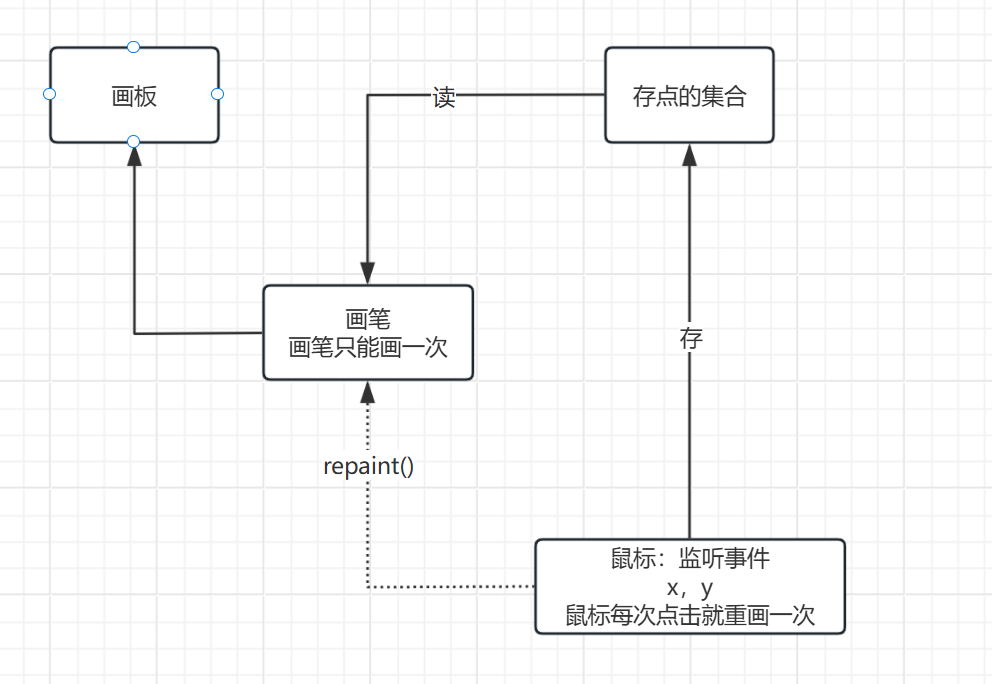
java
/**
 * 鼠标监听事件
 */
public class _12_MouseListener {
    public static void main(String[] args) {
        new MyFrame("鼠标按下在画布上留点");
    }
}

//自己的类
class MyFrame extends Frame {
    //画画需要画笔,需要监听鼠标当前的位置,需要集合来存储这些点
    ArrayList<Point> points;

    public MyFrame(String title) {
        super(title);
        setBounds(200, 200, 450, 300);
        setVisible(true);

        //存鼠标点击的点
        points = new ArrayList<>();
        //鼠标监听器,针对这个窗口
        this.addMouseListener(new MyMouseAdapter());

        //窗口关闭
        ToolUtil.closeFrame(this);
    }

    @Override
    public void paint(Graphics g) {
        //画画,监听鼠标的事件
        for (Point point : points) {
            g.setColor(Color.BLUE);
            g.fillOval(point.x, point.y, 10, 10);
        }

    }

    //适配器模式
    private class MyMouseAdapter extends MouseAdapter {
        //鼠标:按下、弹起、按住不放
        public void mousePressed(MouseEvent e) {
            //获取资源
            MyFrame myframe = (MyFrame) e.getSource();
            //在窗口点击的时候,会在界面上产生一个 点 !
            //这个点就是鼠标的点
            points.add(new Point(e.getX(), e.getY()));

            //每次点击鼠标都需要重画一次
            myframe.repaint();//刷新(帧-->动画)
        }
    }
}
2.9 窗口监听
java
/**
 * 窗口监听
 */
public class _13_WindowListener {
    public static void main(String[] args) {
        new MyWindowFrame("窗口监听");
    }
}

class MyWindowFrame extends Frame {
    public MyWindowFrame(String title) {
        super(title);
        setVisible(true);
        setBounds(100, 100, 450, 300);

        //匿名内部类
        addWindowListener(new WindowAdapter() {
            @Override
            public void windowOpened(WindowEvent e) {
                System.out.println("打开窗口");//目前监听不到,待学习。。。
            }

            @Override
            public void windowClosing(WindowEvent e) {
                System.out.println("关闭窗口");
                System.exit(0);//正常退出   status:1(非正常退出)
            }

            @Override
            public void windowClosed(WindowEvent e) {
                System.out.println("窗口已完全关闭");//目前监听不到,待学习。。。
            }

            @Override
            public void windowActivated(WindowEvent e) {
                setTitle("窗口被激活了!");
                System.out.println("激活窗口");
            }

            @Override
            public void windowDeactivated(WindowEvent e) {
                System.out.println("停用窗口");
            }
        });
    }
}
2.10 键盘监听
java
/**
 * 键盘监听
 */
public class _14_KeyBoardListener {
    public static void main(String[] args) {
        new MyKeyBoardFrame();
    }
}

class MyKeyBoardFrame extends Frame{
    public MyKeyBoardFrame(){
        setVisible(true);
        setBounds(200,200,600,450);

        //监听键盘
        addKeyListener(new KeyAdapter() {
            //键盘按下
            public void keyPressed(KeyEvent e) {
                int keyCode = e.getKeyCode();//获取当前按下键盘 键 的码值
                if (keyCode == KeyEvent.VK_ENTER) {
                    System.out.println("按下了 回车 键");
                }else if (keyCode == KeyEvent.VK_UP){
                    System.out.println("按下了 上 键");
                }else if (keyCode == KeyEvent.VK_DOWN){
                    System.out.println("按下了 下 键");
                }else if (keyCode == KeyEvent.VK_LEFT){
                    System.out.println("按下了 左 键");
                }else if (keyCode == KeyEvent.VK_RIGHT){
                    System.out.println("按下了 右 键");
                }else{
                    System.out.println("按下了 其他键 ");
                }
                //根据按下不同的操作,产生不同结果
            }
        });

        //关闭窗口
        ToolUtil.closeFrame(this);
    }
}
3. Swing(画界面)
3.1 窗口
- 必须要 Container 才能生效
- 文本标签居中
java
/**
 * Swing    JFrame 顶级窗口,需要实例化容器
 */
public class _15_JFrame {
    //init():初始化
    public void init(){
        JFrame jf = new JFrame("这是一个 JFrame 窗口");
        jf.setVisible(true);
        jf.setBounds(200,200,600,450);
        //  没有容器无法存色 <不生效>
        //  jf.setBackground(Color.yellow);
        //实例化容器
        Container contentPane = jf.getContentPane();
        contentPane.setBackground(Color.yellow);

        //设置文字  label
        JLabel jLabel = new JLabel("游戏即将开始。。。。");
        //让文本标签居中
        jLabel.setHorizontalAlignment(SwingConstants.CENTER);
        jf.add(jLabel);

        //关闭事件
        jf.setDefaultCloseOperation(WindowConstants.EXIT_ON_CLOSE);
    }

    public static void main(String[] args) {
        //建立一个窗口
        new _15_JFrame().init();
    }
}
3.2 弹窗
JDialog:用来被弹出,默认就有关闭事件!
java
/**
 * 弹窗
 * 一个新的窗口
 */
//主窗口
public class _16_Dialog extends JFrame {

    public void init(){
        setVisible(true);
        setBounds(100, 100, 450, 300);
        //JFrame 放东西需要 容器
        Container contentPane = getContentPane();
        contentPane.setBackground(Color.pink);
        contentPane.setLayout(null);//绝对定位

        //按钮
        JButton button = new JButton("点击按钮跳出弹窗");
        button.setBounds(20,20,200,50);
        //监听按钮事件
        button.addActionListener(new ActionListener() {
            @Override
            public void actionPerformed(ActionEvent e) {
                //弹窗
                new MyDialog();
            }
        });
        contentPane.add(button);

        //关闭窗口
        setDefaultCloseOperation(JFrame.EXIT_ON_CLOSE);
    }

    public static void main(String[] args) {
        new _16_Dialog().init();
    }
}
//弹窗窗口
class MyDialog extends JDialog {
    public MyDialog() {
        setVisible(true);
        setBounds(200, 200, 200, 150);
        //容器
        Container contentPane = getContentPane();
        contentPane.add(new JLabel("准备好了吗?"));
    }
}
3.3 标签、图片标签
3.3.1 label
java
new JLabel("xxx");3.3.2 图标 Icon(画图工具画一个图标)
java
/**
 * 图标 Icon
 */
public class _17_Icon extends JFrame implements Icon {
    private int width;
    private int height;

    public _17_Icon(){}//无参构造

    public _17_Icon(int width, int height){//有参构造
        this.width = width;
        this.height = height;
    }

    public void init(){
        //图标放在标签上,也可以放在按钮上
        JLabel jLabel = new JLabel("我是一个标签",this,SwingConstants.CENTER);

        Container contentPane = getContentPane();
        contentPane.add(jLabel);

        setVisible(true);
        setBounds(200,200,600,400);
        setDefaultCloseOperation(EXIT_ON_CLOSE);
    }

    public static void main(String[] args) {
        new _17_Icon(10,10).init();
    }

    @Override
    public void paintIcon(Component c, Graphics g, int x, int y) {
        g.setColor(Color.red);//不设置,默认黑色
        g.fillOval(x, y, width, height);
    }

    @Override
    public int getIconWidth() {
        return width;
    }

    @Override
    public int getIconHeight() {
        return height;
    }
}
3.3.3 图片Icon
java
/**
 * 图片 Icon
 */
public class _17_ImageIcon extends JFrame {
    public _17_ImageIcon() throws URISyntaxException {
        //获取图片地址【图片需放置在 resources 的相同包路径下】
        URL url = _17_ImageIcon.class.getResource("savenewOther.png");
        System.out.println(url);
        ImageIcon icon = new ImageIcon(url, "保存");

        JLabel jLabel = new JLabel("这是一个保存标识", icon, SwingConstants.CENTER);

        Container contentPane = super.getContentPane();
        contentPane.add(jLabel);

        super.setVisible(true);
        super.setBounds(200,200,600,400);
        super.setDefaultCloseOperation(JFrame.EXIT_ON_CLOSE);
    }

    public static void main(String[] args) throws URISyntaxException {
        new _17_ImageIcon();
    }
}
3.4 面板(滚动条)
3.4.1 JPanel
java
/**
 * JPanel 面板
 */
public class _018_JPanel extends JFrame {
    public _018_JPanel() {
        JPanel jp1 = new JPanel(new GridLayout(3, 1,10,10));//后面两个参数:间距
        JPanel jp2 = new JPanel(new GridLayout(1, 3,10,10));
        JPanel jp3 = new JPanel(new GridLayout(2, 1,10,10));
        JPanel jp4 = new JPanel(new GridLayout(2, 3,10,10));

        jp1.add(new JButton("1"));
        jp1.add(new JButton("1"));
        jp1.add(new JButton("1"));
        jp2.add(new JButton("2"));
        jp2.add(new JButton("2"));
        jp2.add(new JButton("2"));
        jp3.add(new JButton("3"));
        jp3.add(new JButton("3"));
        jp4.add(new JButton("4"));
        jp4.add(new JButton("4"));
        jp4.add(new JButton("4"));
        jp4.add(new JButton("4"));
        jp4.add(new JButton("4"));
        jp4.add(new JButton("4"));

        //获得容器 --> 表格布局 --> 2行1列
        Container contentPane = super.getContentPane();
        contentPane.setLayout(new GridLayout(2,1));
        //add 面板
        contentPane.add(jp1);
        contentPane.add(jp2);
        contentPane.add(jp3);
        contentPane.add(jp4);

        super.setVisible(true);
        super.setBounds(200,200,600,400);
        super.setDefaultCloseOperation(JFrame.EXIT_ON_CLOSE);
    }

    public static void main(String[] args) {
        new _018_JPanel();
    }
}
3.4.2 JScrollPanel
java
/**
 * JScrollPanel 滚动条面板
 */
public class _18_JScrollPanel extends JFrame {
    public _18_JScrollPanel() {
        //文本域
        JTextArea jTextArea = new JTextArea("这是一个文本域,测试面板滚动条", 20, 15);

        //将文本域 放入 滚动条面板
        JScrollPane jScrollPane = new JScrollPane(jTextArea);

        //将 滚动条面板 放入 容器
        Container contentPane = super.getContentPane();
        contentPane.add(jScrollPane);

        super.setVisible(true);
        super.setBounds(200,200,200,150);
        super.setDefaultCloseOperation(EXIT_ON_CLOSE);
    }

    public static void main(String[] args) {
        new _18_JScrollPanel();
    }
}
3.5 按钮
3.5.1 图片按钮
java
/**
 * 图片按钮
 */
public class _19_JButton extends JFrame {
    public _19_JButton(){

        //获取图片路径
        URL url = _19_JButton.class.getResource("savenewOther.png");
        if (url != null) {
            JButton button = new JButton(new ImageIcon(url));//将图片变为图标,放在button上
            button.setText("保存");
            button.setToolTipText("保存按钮");

            Container contentPane = super.getContentPane();
            contentPane.add(button);
        }

        super.setVisible(true);
//        super.setBounds(200,200,600,500);
        super.pack();
        super.setDefaultCloseOperation(JFrame.EXIT_ON_CLOSE);
    }

    public static void main(String[] args) {
        new _19_JButton();
    }
}
3.5.2 单选按钮:JRadioButton
java
/**
 * 单选按钮
 * 注意:单选框分组,保证一个组里只能选择一个
 */
public class _19_JRadioButton extends JFrame {
    public _19_JRadioButton(){
        //单选框
        JRadioButton jRButton1 = new JRadioButton("男");
        JRadioButton jRButton2 = new JRadioButton("女");

        //由于单选框只能选择一个,所以需要给单选框分组(一个组里只能选一个)
        ButtonGroup buttonGroup = new ButtonGroup();
        buttonGroup.add(jRButton1);
        buttonGroup.add(jRButton2);

        Container contentPane = super.getContentPane();
        contentPane.setLayout(new FlowLayout());
        contentPane.add(jRButton1);
        contentPane.add(jRButton2);

        super.setVisible(true);
        super.setBounds(200,200,600,500);
        super.setDefaultCloseOperation(JFrame.EXIT_ON_CLOSE);
    }

    public static void main(String[] args) {
        new _19_JRadioButton();
    }
}
3.5.3 复选按钮
java
/**
 * 按钮【复选框】
 */
public class _19_03_JCheckBox extends JFrame {
    public _19_03_JCheckBox(){
        super("复选框");

        //复选框
        JCheckBox jCheckBox1 = new JCheckBox("看电影");
        JCheckBox jCheckBox2 = new JCheckBox("玩游戏");
        JCheckBox jCheckBox3 = new JCheckBox("听歌");
        JCheckBox jCheckBox4 = new JCheckBox("撸代码");

        Container contentPane = super.getContentPane();
        contentPane.setLayout(new FlowLayout());
        contentPane.add(jCheckBox1);
        contentPane.add(jCheckBox2);
        contentPane.add(jCheckBox3);
        contentPane.add(jCheckBox4);

        super.setVisible(true);
        super.setBounds(200,200,600,400);
        super.setDefaultCloseOperation(EXIT_ON_CLOSE);
    }

    public static void main(String[] args) {
        new _19_03_JCheckBox();
    }
}
3.6 列表(下拉框)
3.6.1 下拉框
java
/**
 * 下拉框
 */
public class _20_Combobox extends JFrame {
    public _20_Combobox(){
        super("下拉框");
        JComboBox jComboBox = new JComboBox();
        jComboBox.addItem("-- 请选择 --");
        jComboBox.addItem("正在热映");
        jComboBox.addItem("已下架");
        jComboBox.addItem("即将上映");
        jComboBox.addActionListener(new ActionListener() {
            public void actionPerformed(ActionEvent e) {
                JComboBox source = (JComboBox) e.getSource();
                System.out.println(source.getSelectedItem());
                System.out.println("选择了" + jComboBox.getSelectedItem());
            }
        });

        JPanel jPanel = new JPanel();
        jPanel.setBounds(0,0,100,50);
        jPanel.add(jComboBox);

        Container contentPane = super.getContentPane();
        contentPane.setLayout(new FlowLayout());
        contentPane.add(jPanel);

        super.setVisible(true);
        super.setBounds(200,200,600,400);
        super.setDefaultCloseOperation(JFrame.EXIT_ON_CLOSE);
    }

    public static void main(String[] args) {
        new _20_Combobox();
    }
}
3.6.2 列表框
java
/**
 * 列表框
 */
public class _20_JList extends JFrame {
    public _20_JList() {
        //生成列表的内容【静态】
//        String[] contents = {"1","2","300","4","5","6","7777777","8","9"};
        //变量【动态】
        Vector contents = new Vector();
        contents.add("1");
        contents.add("2");
        contents.add("300");
        contents.add("4");
        contents.add("5");
        contents.add("6");
        contents.add("7777777");
        contents.add("8");
        contents.add("9");
        JList jList = new JList(contents);

        JPanel jPanel = new JPanel();
        JScrollPane jScrollPane = new JScrollPane(jList);
        jPanel.add(jScrollPane);
        jPanel.setBounds(200,200,200,100);

        Container contentPane = super.getContentPane();
        contentPane.add(jPanel);

        super.setVisible(true);
        super.setBounds(200,200,600,400);
        super.setDefaultCloseOperation(JFrame.EXIT_ON_CLOSE);


    }

    public static void main(String[] args) {
        new _20_JList();
    }
}
3.6.3 应用场景
- 【下拉框】:选择地区,超过两个选项的单选
- 【列表框】:展示信息,一般是动态扩容!
3.7 文本框
文本框
密码框
文本域
java
/**
 * - 文本框
 * - 密码框
 * - 文本域
 */
public class _21_JText extends JFrame {
    public _21_JText() {
        super("文本框");

        JTextField jTextField = new JTextField("这是一个文本框");
        JPasswordField jPasswordField = new JPasswordField("这是一个密码框");
        jPasswordField.setEchoChar('*');

        JTextArea jTextArea = new JTextArea("这是一个文本域", 20, 50);

        Container contentPane = super.getContentPane();
        contentPane.setLayout(new FlowLayout());
        contentPane.add(jTextField);
        contentPane.add(jPasswordField);
        contentPane.add(jTextArea);

        super.setVisible(true);
        super.setBounds(200,200,600,400);
        super.setDefaultCloseOperation(JFrame.EXIT_ON_CLOSE);
    }

    public static void main(String[] args) {
        new _21_JText();
    }
}
二. 贪吃蛇
帧:如果时间片足够小,就是动画,一秒30帧 60帧。连起来是动画,拆开就是静态的图片!
键盘监听
定时器【Timer】
框架
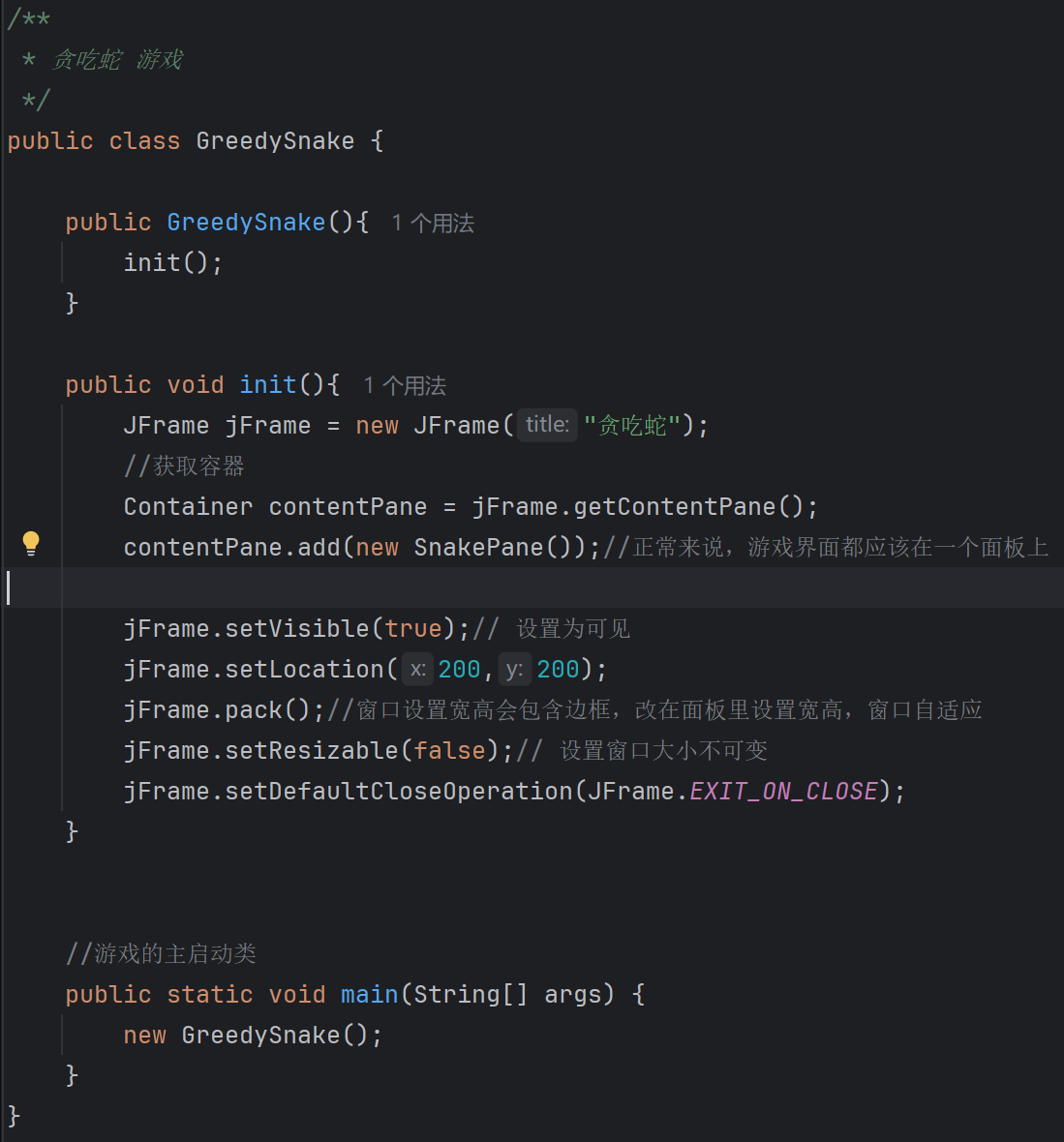
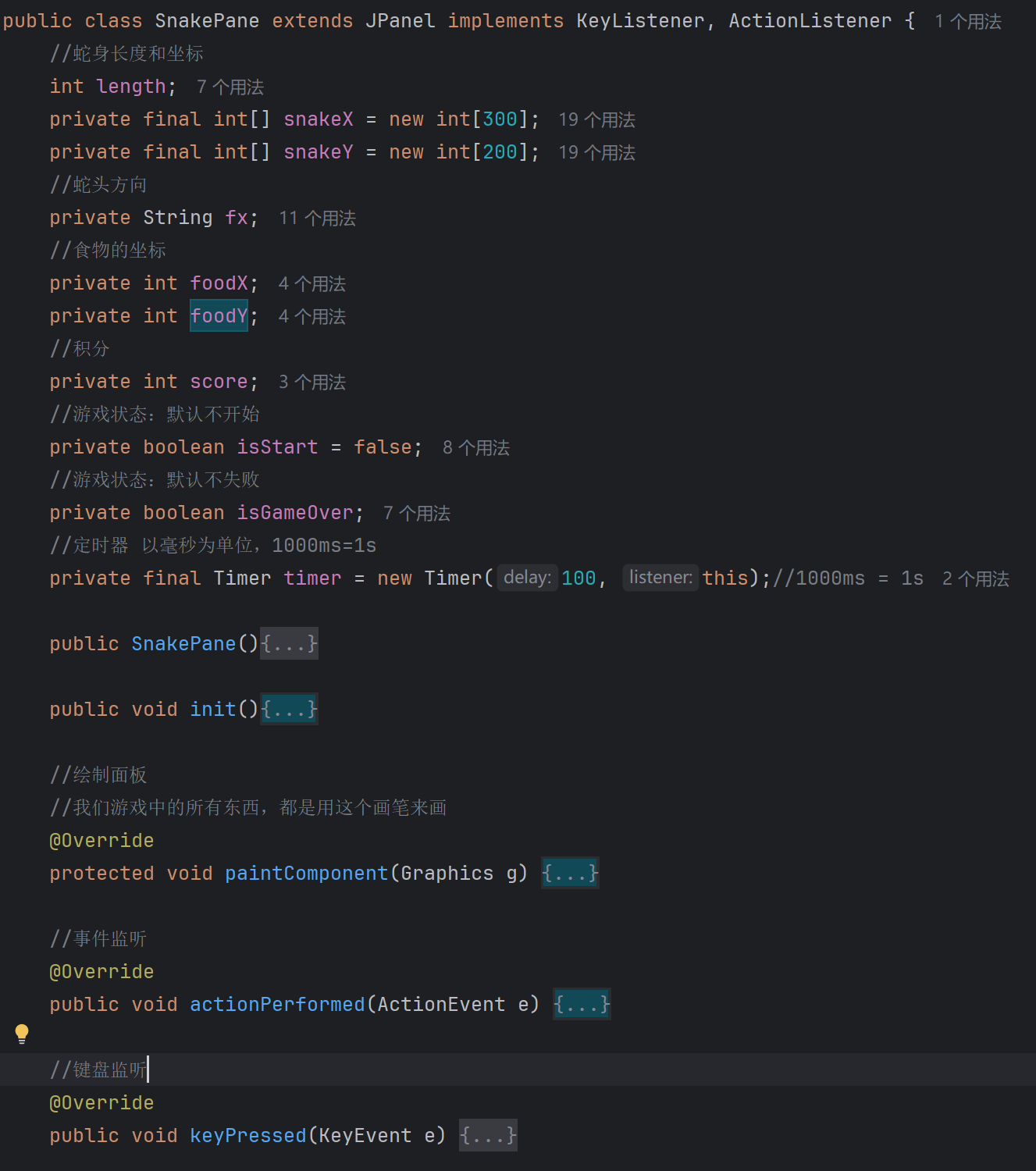
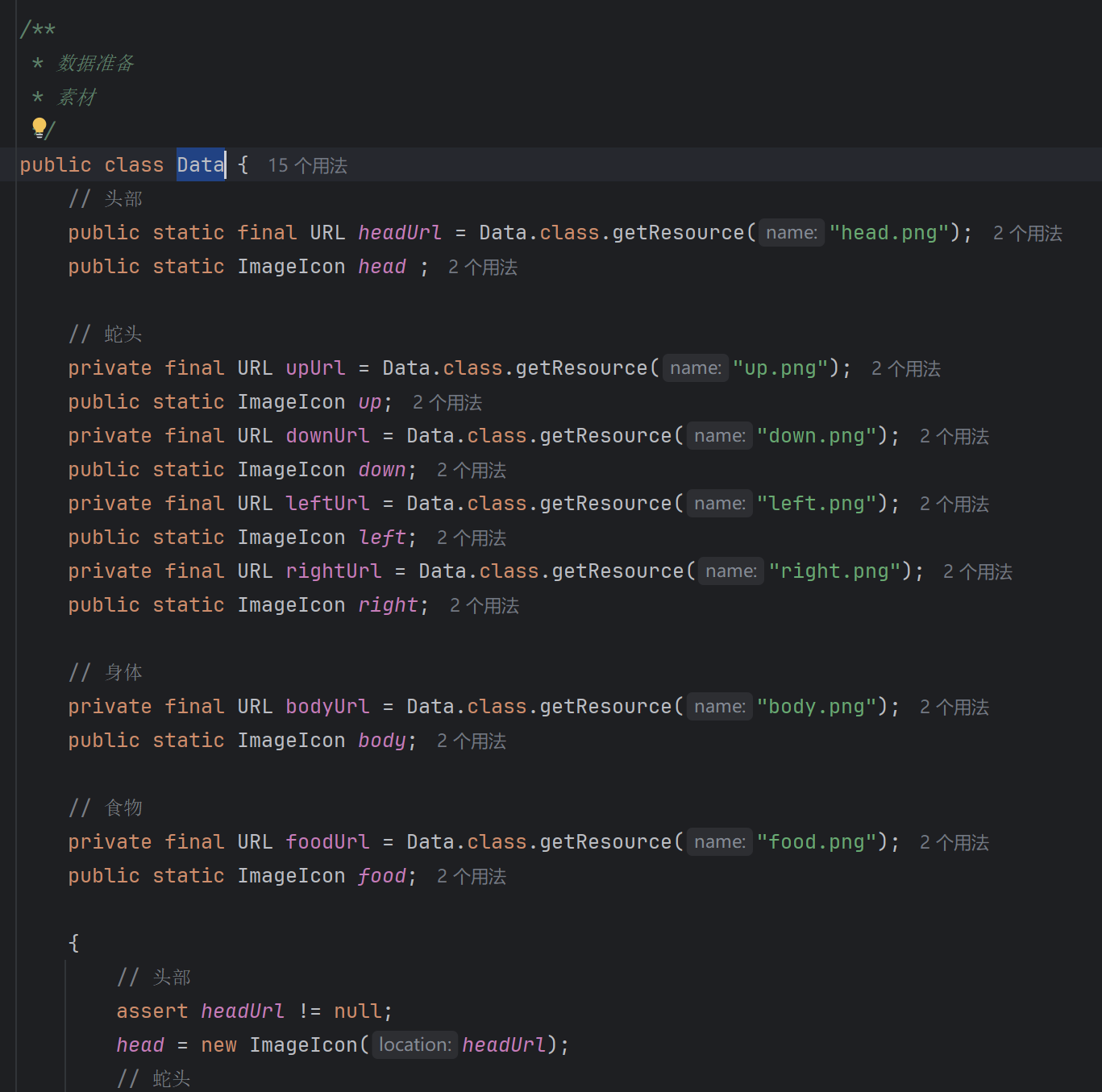
代码
java/** * 贪吃蛇 游戏 */ public GreedySnake(){ init(); } public void init(){ JFrame jFrame = new JFrame("贪吃蛇"); //获取容器 Container contentPane = jFrame.getContentPane(); contentPane.add(new SnakePane());//正常来说,游戏界面都应该在一个面板上 jFrame.setVisible(true);// 设置为可见 jFrame.setLocation(200,200); jFrame.pack();//窗口设置宽高会包含边框,改在面板里设置宽高,窗口自适应 jFrame.setResizable(false);// 设置窗口大小不可变 jFrame.setDefaultCloseOperation(JFrame.EXIT_ON_CLOSE); } //游戏的主启动类 public static void main(String[] args) { new GreedySnake(); }java/** * 贪吃蛇 游戏面板 * * 1.定义数据 * 2.画上去 * 3.监听事件 * 键盘监听 * 事件监听 */ public class SnakePane extends JPanel implements KeyListener, ActionListener { //蛇身长度和坐标 int length; private final int[] snakeX = new int[300]; private final int[] snakeY = new int[200]; //蛇头方向 private String fx; //食物的坐标 private int foodX; private int foodY; //积分 private int score; //游戏状态:默认不开始 private boolean isStart = false; //游戏状态:默认不失败 private boolean isGameOver; //定时器 以毫秒为单位,1000ms=1s private final Timer timer = new Timer(100, this);//1000ms = 1s public SnakePane(){ //初始化素材中心 new Data(); //设置内容区域大小,再用pack()自适应,解决边框问题 this.setPreferredSize(new Dimension(900, 700)); //初始化页面数据 init(); //获得焦点和键盘事件 this.setFocusable(true); this.addKeyListener(this); //初始化的时候启动定时器 timer.start(); } public void init(){ //初始化小蛇长度和位置 length = 3; snakeX[0] = 100; snakeY[0] = 75; snakeX[1] = 75; snakeY[1] = 75; snakeX[2] = 50; snakeY[2] = 75; isStart = !isStart; isGameOver = false; fx = "R";//初始化蛇头向右 //初始化食物位置 foodX = 25 + (new Random().nextInt(34)) * 25; foodY = 75 + (new Random().nextInt(24)) * 25; //初始化积分 score = 0; } //绘制面板 //我们游戏中的所有东西,都是用这个画笔来画 @Override protected void paintComponent(Graphics g) { super.paintComponent(g);//清平 //绘制头部广告栏 Data.head.paintIcon(this, g, 25, 11); //绘制游戏区域,黑色实心长方形 g.setColor(Color.BLACK); g.fillRect(25,75, 850,600);//宽34,长24 //绘制食物 Data.food.paintIcon(this, g, foodX, foodY); //绘制小蛇 switch (fx){ case "U": Data.up.paintIcon(this, g, snakeX[0], snakeY[0]); break; case "D": Data.down.paintIcon(this, g, snakeX[0], snakeY[0]); break; case "L": Data.left.paintIcon(this, g, snakeX[0], snakeY[0]); break; case "R": Data.right.paintIcon(this, g, snakeX[0], snakeY[0]); break; } for (int i = 1; i < length; i++) { Data.body.paintIcon(this, g, snakeX[i], snakeY[i]); } //绘制游戏开始前提示 if (!isStart) { g.setFont(new Font("微软雅黑", Font.BOLD, 40)); g.setColor(Color.WHITE); String msg = "按下空格开始游戏!"; g.drawString(msg, 280, 300); } //游戏失败提示 if(isGameOver){ g.setFont(new Font("微软雅黑", Font.BOLD, 40)); g.setColor(Color.RED); String msg = "游戏失败!按下空格重新开始!"; g.drawString(msg, 200, 300); } //绘制积分 g.setColor(Color.BLACK); g.setFont(new Font("微软雅黑",Font.BOLD,15)); g.drawString("长度:" + length,730,30); score = (length-3) * 2; g.drawString("积分:" + score,730,50); } //事件监听 @Override public void actionPerformed(ActionEvent e) { //事件监听--需要通过固定事件来刷新 if(isStart && !isGameOver){ //如果小蛇吃到食物,则身体长度 + 1 if(snakeX[0]==foodX && snakeY[0]==foodY){ length += 1; //重置食物坐标 foodX = 25 + (new Random().nextInt(34)) * 25; foodY = 75 + (new Random().nextInt(24)) * 25; } //如果游戏是开始状态就让小蛇动起来 for (int i = length-1; i > 0; i--) { snakeX[i] = snakeX[i-1];//snakeX【2】=snakeX【1】 snakeY[i] = snakeY[i-1];//snakeX【2】=snakeX【1】 } switch (fx){ case "U": snakeY[0] -= 25; if(snakeY[0]<75) snakeY[0]=650; break; case "D": snakeY[0] += 25; if(snakeY[0]>650) snakeY[0]=75; break; case "L": snakeX[0] -= 25; if(snakeX[0]<25) snakeX[0]=850; break; case "R": snakeX[0] += 25; if(snakeX[0]>850) snakeX[0]=25; break; } //失败判定,头撞到身体 for (int i = 1; i < length-1; i++) { if (snakeX[0]==snakeX[i] && snakeY[0]==snakeY[i]) { isGameOver = !isGameOver; } } repaint();//重画 } timer.start();//启动定时器 } //键盘监听 @Override public void keyPressed(KeyEvent e) { //键盘事件监听 switch (e.getKeyCode()){ case KeyEvent.VK_SPACE://空格双重作用 if(isGameOver){ //游戏失败,重新开始 isGameOver = false; init(); isStart = !isStart; }else{ isStart = !isStart; } repaint(); break; case KeyEvent.VK_W: if(!"D".equals(fx)){ fx = "U"; } break; case KeyEvent.VK_S: if(!"U".equals(fx)){ fx = "D"; } break; case KeyEvent.VK_A: if(!"R".equals(fx)){ fx = "L"; } break; case KeyEvent.VK_D: if(!"L".equals(fx)){ fx = "R"; } break; } } @Override public void keyTyped(KeyEvent e) { } @Override public void keyReleased(KeyEvent e) { } }java/** * 数据准备 * 素材 */ public class Data { // 头部 public static final URL headUrl = Data.class.getResource("head.png"); public static ImageIcon head ; // 蛇头 private final URL upUrl = Data.class.getResource("up.png"); public static ImageIcon up; private final URL downUrl = Data.class.getResource("down.png"); public static ImageIcon down; private final URL leftUrl = Data.class.getResource("left.png"); public static ImageIcon left; private final URL rightUrl = Data.class.getResource("right.png"); public static ImageIcon right; // 身体 private final URL bodyUrl = Data.class.getResource("body.png"); public static ImageIcon body; // 食物 private final URL foodUrl = Data.class.getResource("food.png"); public static ImageIcon food; { // 头部 assert headUrl != null; head = new ImageIcon(headUrl); // 蛇头 assert upUrl != null; up = new ImageIcon(upUrl); assert downUrl != null; down = new ImageIcon(downUrl); assert leftUrl != null; left = new ImageIcon(leftUrl); assert rightUrl != null; right = new ImageIcon(rightUrl); // 身体 assert bodyUrl != null; body = new ImageIcon(bodyUrl); // 食物 assert foodUrl != null; food = new ImageIcon(foodUrl); } }